
One day I came across a marketing video put together by SGI marketing selling the concept of the 60 hz update rate. I don't remember the details, but the concept was presented by two individuals, one a computer scientist and the other a occulist. Both explained, from different points of view, the way the computer and the brain worked in somewhat disparate trains of thought, but the final conclusion, voiced by both individuals at the same time was:
"And it all happens in 16 milliseconds".
I bought into the concept (probably because the video was done so well) and believed for quite a while that there was something magical about the 16.667 millisecond time slice which results in the 60 hz visual update rate. At the time I was training myself to recognize the difference between 30 and 60 hz and becoming quite aware of the 60 hz requirements that government flight simulator contracts imposed on prospective developers. I also learned the term "sim sickness" and in fact experienced some of this with head-mounted displays.
This article and accompanying test software will teach you how to recognize frame rates as a function of your computer monitor's refresh rate. Beware, until the mid 90's, I was perfectly happy with simulators that ran at 30 Hz, and even tolerated some at 20 hz. After learning these concepts I cringe at so-called "real-time" 3D graphics applications that update at anything less than the monitors refresh rate. This article may do the same for you, as well as ruin your enjoyment of big screen movies which all run at 24 frames per second.
Also,
the initial version of this software was tested on Linux (Red Hat 9.0, to be
exact), using an nVidia Fx5950 card. Your results may vary or not even work
for other operating systems or graphics cards. Two important requirements
are:
Sync on vertical retrace is accomplished by setting the environmental
variable
__GL_SYNC_TO_VBLANK=1
on NVidia based hardware. On Windows, ensure that sync to vertical retrace
is enabled somewhere in your Display Properties (check your vendor's resources).
Ok, get out the Windex and clean the finger prints off your monitor, unpack the tarball, build the software, and run it. If you can, make the room dark so there are no distracting reflections on the monitor. (Commands under Linux/Unix):
You should have a full screen application with the background set to black. A single, vertical line will be rotating in a circle around a center "up" axis. Allow your eyes to follow the line as it moves around. The line should be clear and unbroken. Toggle a frame rate indicator with the 'f' key. If the reported frame rate is not what your monitor's refresh rate is (typically 60, 72, 85, 88, etc. Hz), then your graphic card driver is not configured to run with swap buffers synchronized to vertical retrace. Stop and fix that as the rest of this test will mean little without that synchronization.
This is a good opportunity to understand what is meant by swap buffer tearing if swap buffers is not synched to vertical retrace.
|
|
|
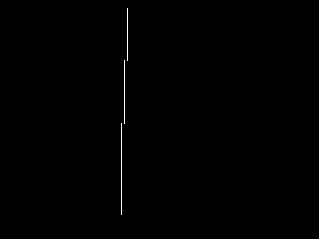
| Figure 1 shows swap buffers occuring at the same rate as the monitor refresh rate, but not during the refresh "blank" time. The top half of the monitor is a frame ahead of the bottom half. Swapbuffers has occurred when the retrace scan was in the middle of the monitor. | Figure 2 is more likely for this application, showing a drawing multiple draws and swap buffers for every vertical refresh frame. In this case, the graphics frame rate is at least three times that of the monitor refresh rate. |
If you are certain that you are running with swap buffers synchronized to vertical refresh rate, then lets move on. The keyboard keys you need to be aware of are:
| Up Arrow | Increase the frame rate (up to the vertical refresh rate). |
| Down Arrow | Decrease the frame rate. |
| 'f' | Toggle displaying the frame rate. |
| Esc | Quit the program |
Toggle the frame stats on so that you can see what the frame rate and then start decreasing the frame rate with the down arrow. Note that the frame rate represents the original vertical refresh rate is divided by an increasing integer. That is, if your original refresh rate was 60 hz, the next step down is 30 Hz (60/2), followed by 20 Hz (60/3), 15 Hz (60/4), followed by 12 Hz (60/5), 10 Hz (60/10), etc. Now, arrow back up until you are running at maximum frame rate again. Step down to 30 Hz and allow your eyes to follow the line as it circles. You should see two distinct images of the line, especially when it comes further into the foreground.

Figure 3 shows "double vision" at graphics frame
rate that is half that of the vertical refresh rate.
Now step to the next frame rate down (20 Hz if your refresh rate is 60 Hz). You should now see three images of the line. It might be harder to see when the line is in the background, but in the foreground three lines should be clear.
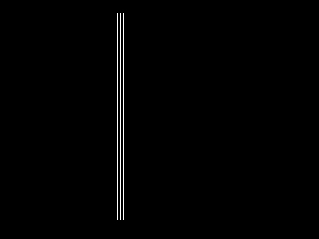
Figure 4 shows "triple vision" at graphics frame
rate that is one third that of the vertical refresh rate.
Note that this trend continues as you lower the frame rate. The number of images is equal to the number you are dividing the frame rate by. It might be hard to detect distinct lines after about four. Now, we can actually come up with a valid formula for this:
Frame rate = Refresh rate / number of images
Just for fun, test your self by toggling off the frame rate stats and setting the frame rate to an arbitrary number, then try and see if you can quote the frame rate by the number of repeated images seen on the screen.
Excellent. You've just trained your eye to detect frame rate by simply looking at a computer generated image. Although you've been looking at an application of a single line, the principle holds fast. You should be able to look at any computer generated image that is updating at a fixed frame rate and detect contrast lines (telephone poles, trees, fences, the horizon) producing single, double or triple images.
Take this skill to the nearest visual simulation trade show and start seeing if you can identify what frame rates applications are actually running at. You will encounter, no doubt, those who put their thumbs in their armpits and boast of a steady 60 Hz frame rate. If you see their application producing double images, feel free to point this out to them. We all need to be a bit smarter.
The truth is a much simpler explanation. Yes, something is updating at 60 Hz. The monitor! Our eyes, in fact, "tune in" to this frequency. In the example application, your eyes followed the line as it rotates around in circles at a relatively constant rate. For each vertical refresh frame, the eye expects to see the line in the new position given the rate of travel across the screen. If the line position is updating at half the refresh rate frame, the eye will see it "behind" where it should be every other frame, thus creating a double vision effect.
Now, there is a correlation with visual perception and the rate at which we update the monitor. If you've ever set your CRT monitor to update at 50 Hz, you begin to notice a perceptible flicker in the image. If you've become accustomed to setting modern day monitors to higher frame rates (like 85 Hz), even 60 Hz may seem to flicker.
However, one need only spend a few minutes in a dome simulator, or cave, or some very immersive 3D environment with an application running at 30 hz to realize that nothing short of full vertical retrace frame rate is acceptable. If you don't have a dome simulator or cave handy, buy a ticket to a movie in which the camera pans a lot and sit near the front of the theater for a similar effect.
Applications intended for real-time performance, must strive for a frame rate that matches the vertical retrace of the display device. There are further reasons for this when the display is made up of contiguous, adjacent, synchronized displays. It becomes a more difficult task to synchronize multiple displays that run at rates below vertical refresh rates. But that... is another article...